Overview
👋 Welcome to Fubo! This guide helps you get started with the Fubo app on your Amazon Fire TV from start to finish.
In this article:
Select a link below to jump to a section, or just scroll down the page.
- Set Up & Install
- Sign In to Fubo
- Browsing the Fubo Home Screen
- Basic Fire TV Controls
- Search
- Watching Live & On-Demand
- Filters & Personalization
- Account & Billing
- Get More Help
📲 Set Up & Install
To get started:
- From the Fire TV Home screen, go to Find 🔍 > Search.
- Type Fubo (or press and hold the Alexa Voice button on your remote and say “Fubo”).
- Select the Fubo app from the search results.
- Choose Get or Download to install the app.
- Once installed, select Open to launch Fubo.
🔑 Sign In to Fubo
You can sign in two ways:
-
Using a code (recommended): Open the app on your Fire TV and follow the on-screen instructions. On a phone, tablet, or computer, visit www.fubo.tv/connect, enter the code shown on your TV, and you’ll be logged in instantly.
- Using your email and password: Select Sign In with Email, then enter your Fubo login credentials.
💡 Quick Tips
- Codes expire in 5 minutes ⏰.
- Refresh the page for a new code if needed.
- Don’t have a Fubo account? Create one here.
- Forgot your password? Reset it here.
- Still not working? Try Sign In with Email instead.
🏠 Browsing the Fubo Home Screen
On the Fubo home screen, you’ll find:
-
Guide: Browse live and upcoming programs across all your channels.
-
Sports, Shows, Movies: Explore by category or genre.
-
My Stuff: Quickly access your favorites, recordings, and recently watched shows.
💡 Tip: Select All Channels in the Guide to see everything included in your plan.
ℹ️ Basic Fire TV Controls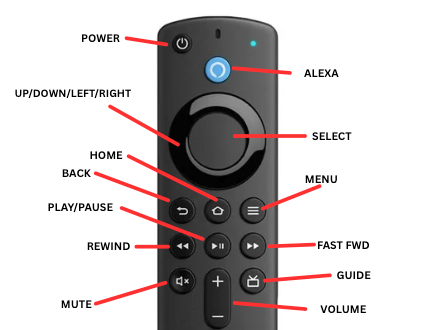
Use your Fire TV remote to move through menus and content:
- Navigation Ring (Up / Down / Left / Right): Move through menus, channels, or time slots.
- Select / OK: Choose a highlighted item or open a program.
- Home: Return to the Fire TV Home screen.
- Alexa: Voice control allows you to search with ease.
-
Back: Go one step back in the Fubo app.
💡 Pro Tip: If you ever get stuck, press Home to return to the main Fire TV menu.
🔍 Search
Looking for something specific? Here’s a few ways to do that:
-
Search: Use the on-screen keyboard to search by title, team, or network.
- Voice Search: If your Fire TV remote has a microphone button, hold it down and say what you’re looking for.
💡 Pro Tip: Searching by network name (like ESPN or MTV) shows what’s currently airing live on that channel.
🎥 Watching Live & On-Demand
-
Live TV: Go to the Guide and select what’s currently airing.
-
On-Demand: Access shows, movies, and past episodes anytime.
- Restart/Look-back: Missed the beginning? Restart the program or watch from earlier in the day (where available).
💡 Pro Tip: While watching live, press and hold the back button on your remote to return to the previous channel.
🔽 Filters & Personalization
Use filters to customize your experience.
Apply filters in the Guide to browse by genre—like Live Sports, Trending, or Just Added.
Popular filters on Fubo:
-
Sports: The Sports filter allows you to set up for every approaching season.
- Choose your sports, league and team all within the Sports page.
- Set sporting events to record ahead of time.
- Follow your favorite team so that you never miss a game.
-
Movies: Browse through movie categories like:
- Trending Now
- Edge-of-your-seat Thrillers
- For the Kids
-
Favorites:
- Highlight any channel in the Guide and select Add to Favorites.
- Your favorites appear at the top of the Guide.
- To rearrange them, select Reorder Favorites and move them into your preferred order.
To learn more about Favorites, check out How do I Favorite the channels I watch most?
☁️ Manage Your Recordings
Never miss a moment:
- Record live shows or events from the Guide or program page. Check out How can I record a program?
- Access, delete or manage your recordings under My Stuff > Recordings.
🏈 Sports Features
Sports fans, you’re in for a treat:
-
Live stats and scores: Get real-time updates right on-screen.
Learn more: Can I disable live scores in the Fubo app?
-
Blackouts: Some events may be unavailable in your area.
Learn more: What does it mean if a program is blacked out?
🔄 App Updates
To make sure your Fubo app is up to date:
- From the Fire TV Home screen, highlight the Fubo app.
- Press the Menu (☰) button on your remote.
- Select More Info.
- If an update is available, choose Update.
❌ Exit or Close the App
To close the Fubo app:
Press the Home button on your Fire TV remote.
This immediately leaves the app and takes you back to the Fire TV Home screen.
💬 Troubleshooting
If something’s not working quite right:
-
App not loading: Restart your Fire TV and check your internet connection.
-
Sign-in issues: Reset your password or try another sign-in method.
- Playback issues: Restart the app, clear cache, or reinstall Fubo.
💡 Pro Tip: If the app becomes unresponsive, you can force close it under
Settings > Applications > Manage Installed Applications > Fubo > Force Stop.
📎 See: Common Troubleshooting Steps
👤 Account & Billing
Manage your Fubo account anytime at fubo.tv/myaccount:
- Update payment methods
- Change your plan
- Cancel or resubscribe
- View billing history
If you originally subscribed to Fubo through Roku, any changes you wish to make must be made directly through your Roku account. See: How do I change my Roku billed Fubo subscription?
If you’d prefer to contact Roku directly for assistance with your account, you can contact them here 👉 https://support.roku.com/
🆘 Need More Help?
For more help, use the search bar at the top of the Help Center, or select the Contact Us button on the page to reach our support team.